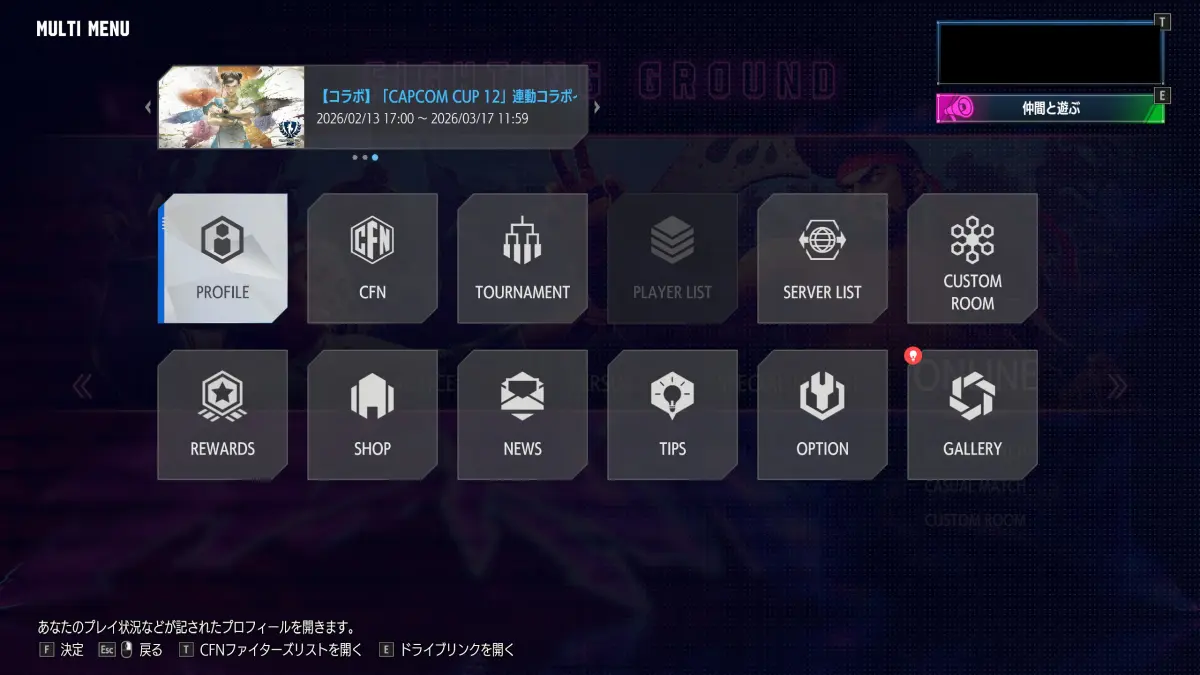
Step 1
How to check your user code: Step 1
Open the Multi Menu and select the PROFILE icon to move to the user code screen.
Step 1
Open the Multi Menu and select the PROFILE icon to move to the user code screen.
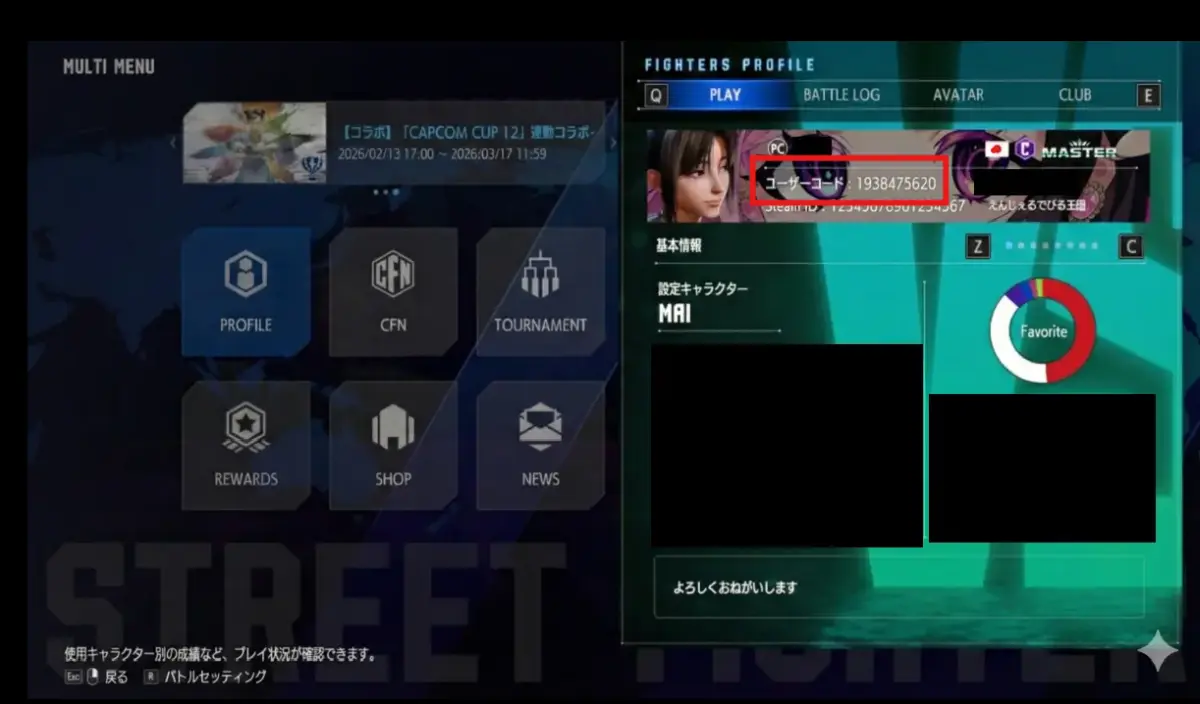
Step 2
On the PROFILE screen, check the user code location highlighted in the screenshot and note the 10-digit code.
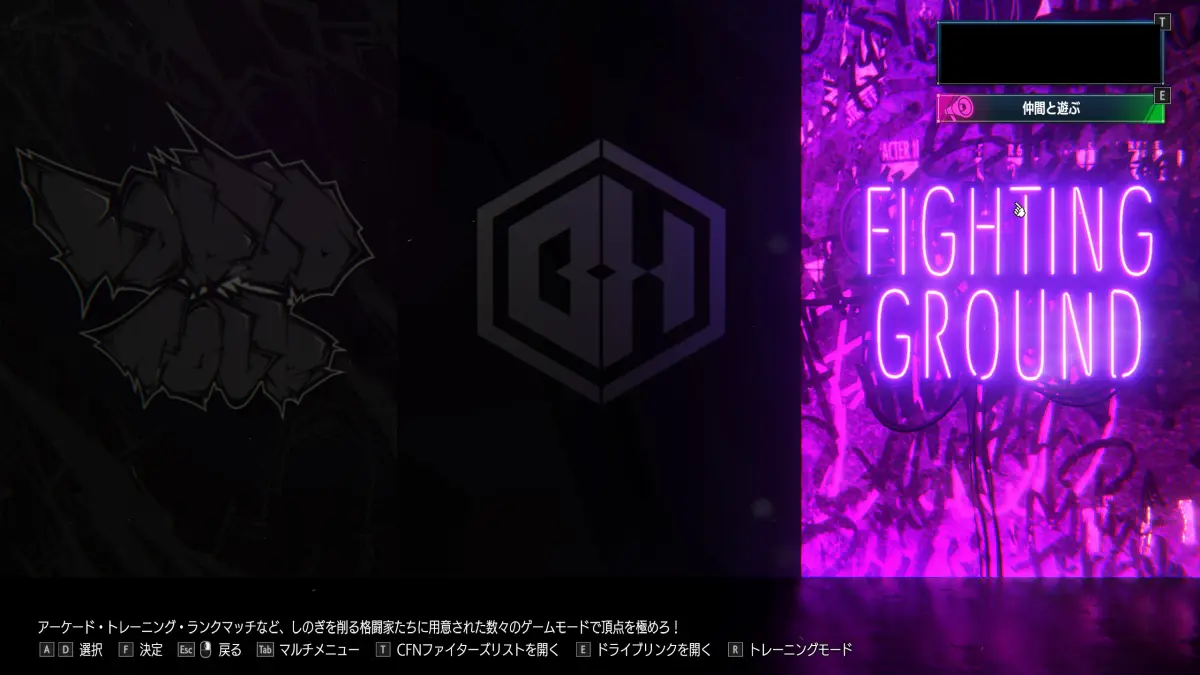
Step 1
Start from FIGHTING GROUND to enter the versus flow.
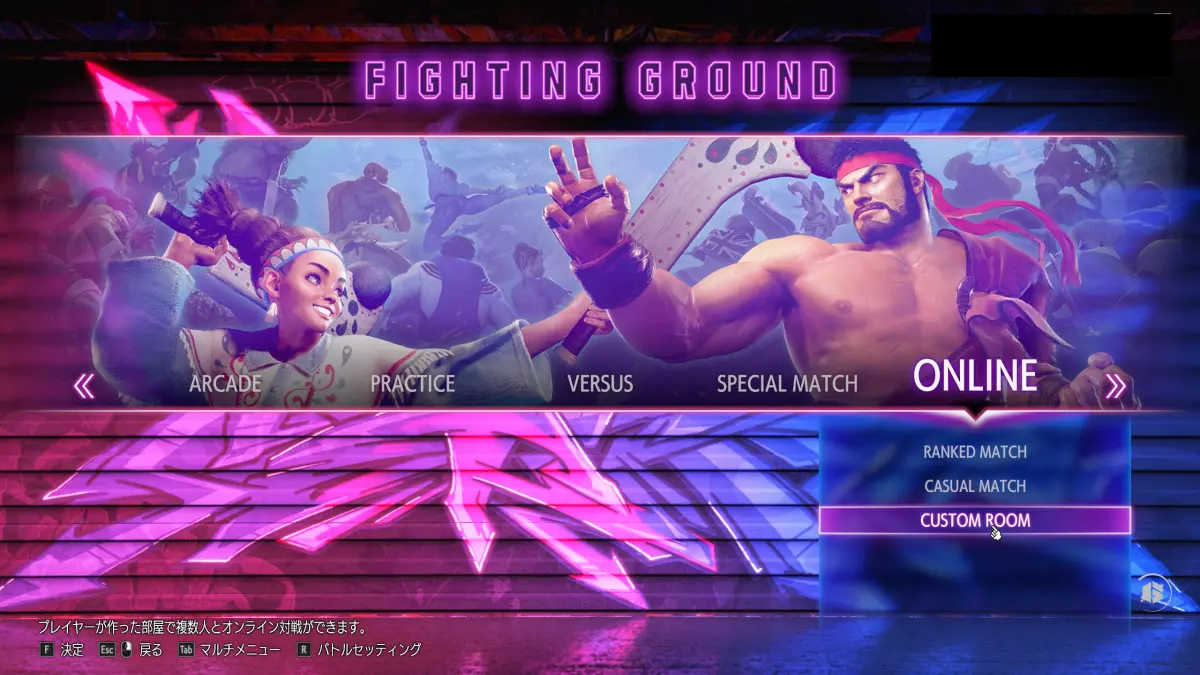
Step 2
Inside FIGHTING GROUND, select CUSTOM ROOM to open the custom room menu.
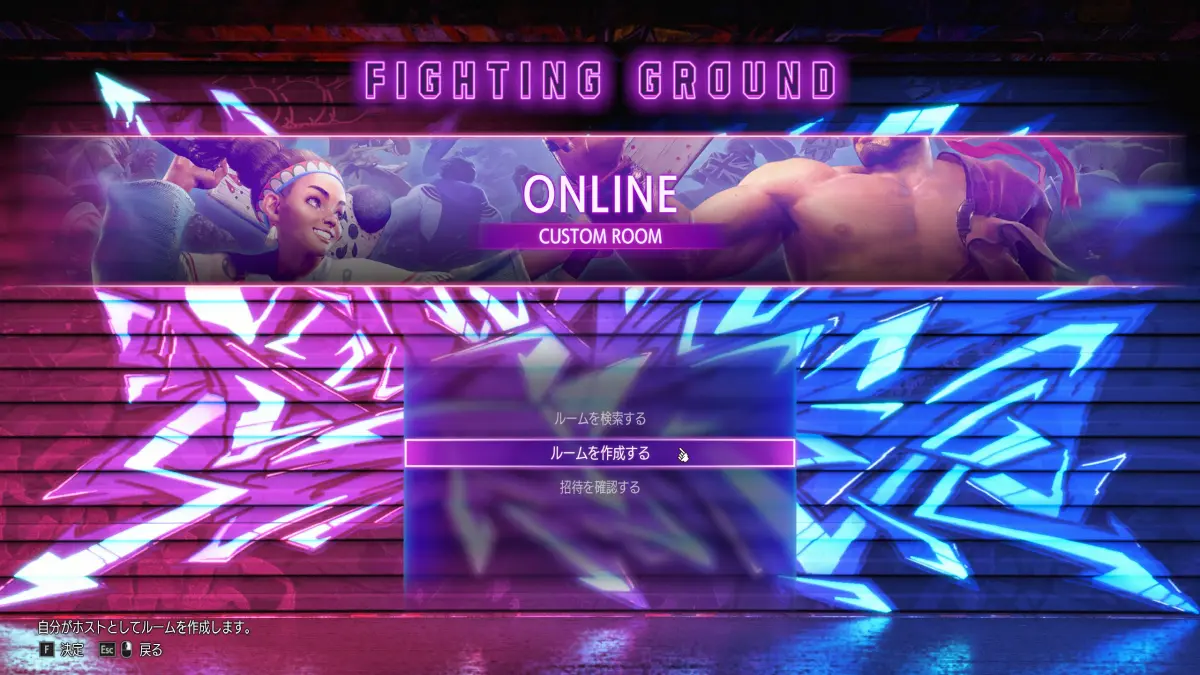
Step 3
Choose "Create Room" from the CUSTOM ROOM menu.
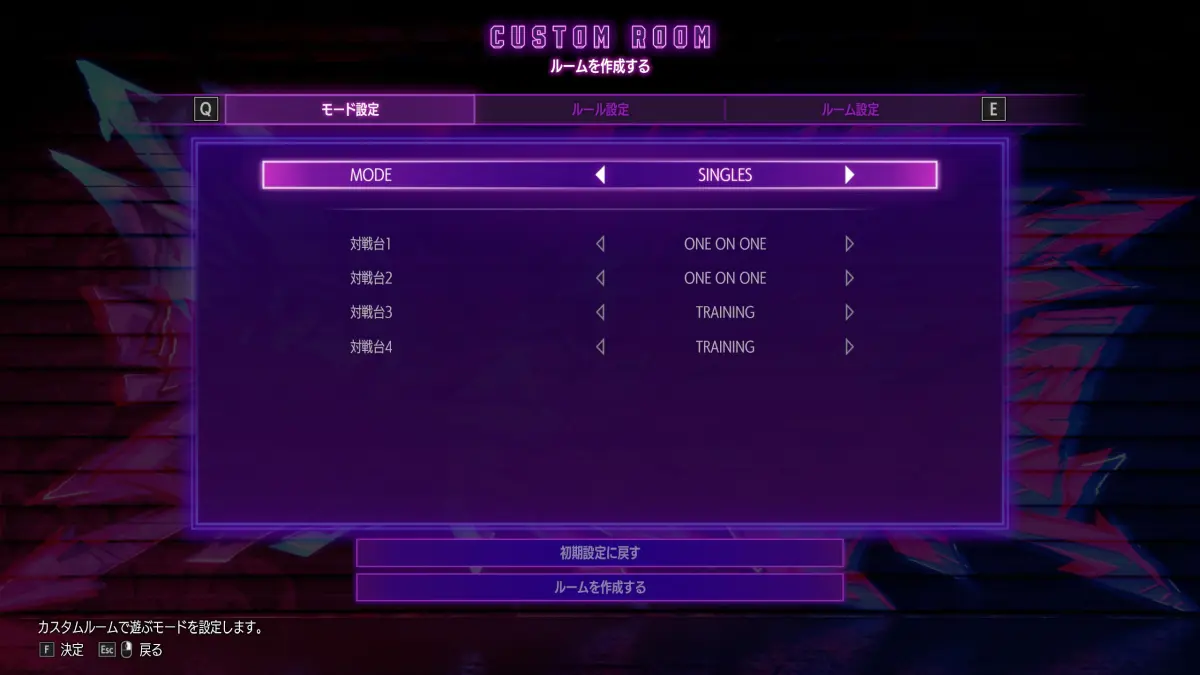
Step 4
In Mode Settings, set MODE to SINGLES and ensure at least one station is set to ONE ON ONE.
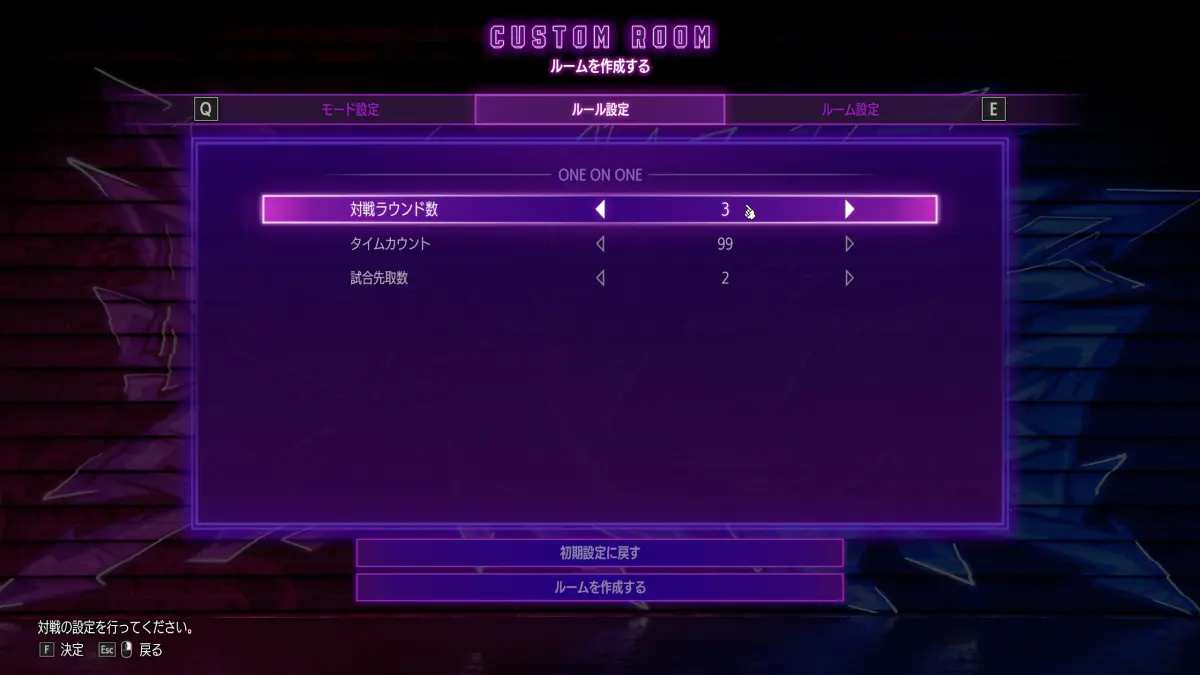
Step 5
In Rule Settings, recommended values are rounds 3, timer 99, and first-to 2 or 3.
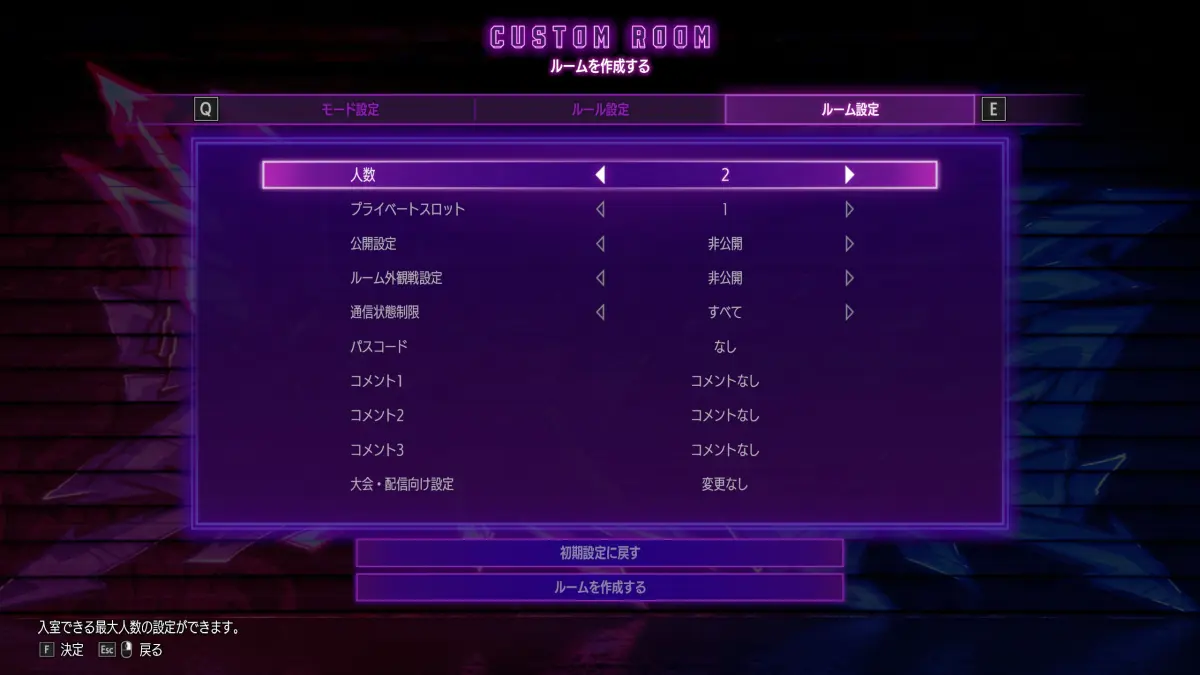
Step 6
Use the following room settings.
Once these settings are complete, select the "Create Room" button.
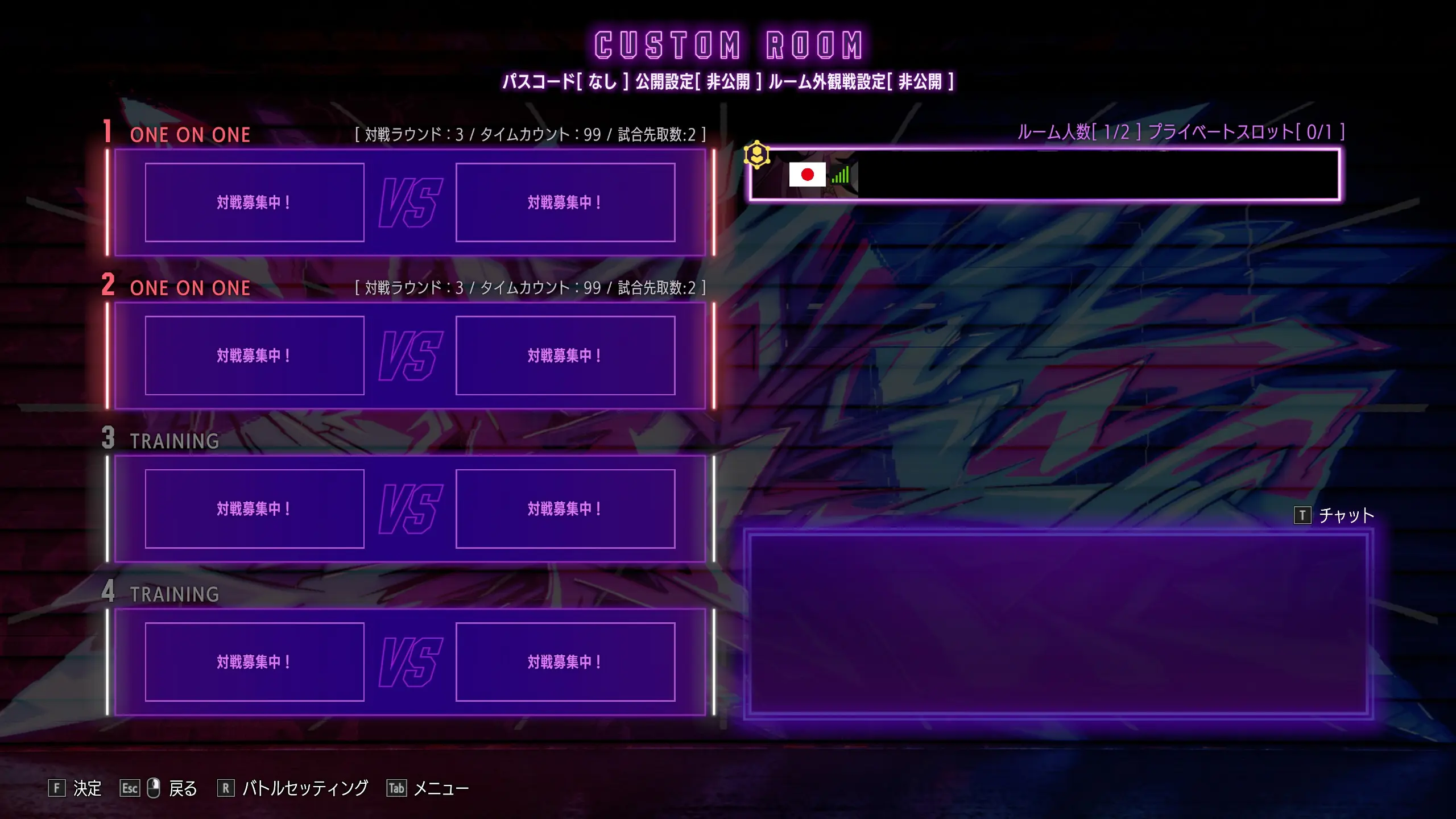
Step 7
On the room main screen, you can use chat, battle settings (character change), and the menu (invite / room settings).
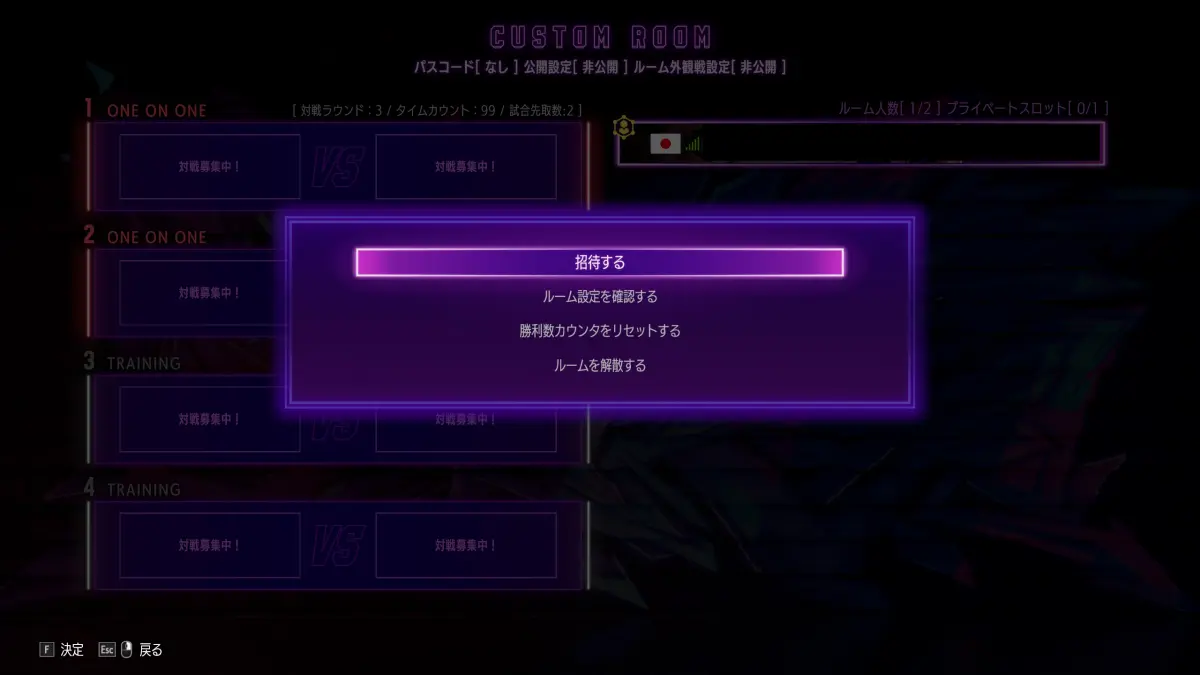
Step 8
Open the main menu and select "Invite".
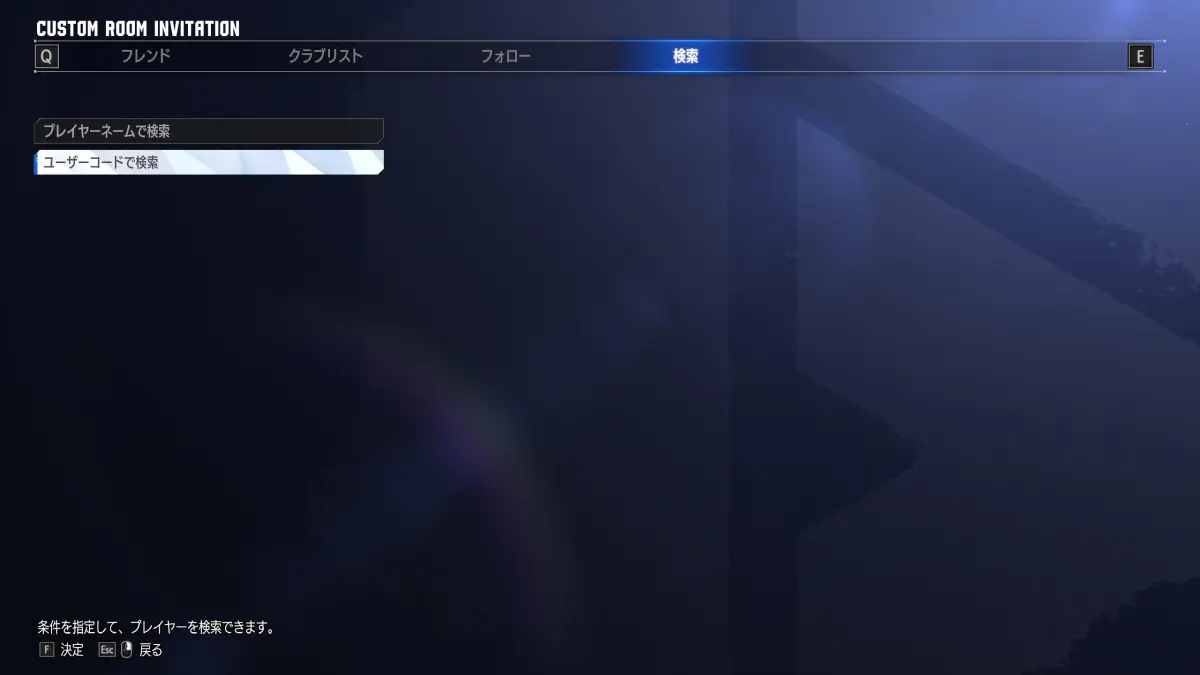
Step 9
After selecting Invite, move to the "Search" tab and select "Search by User Code".
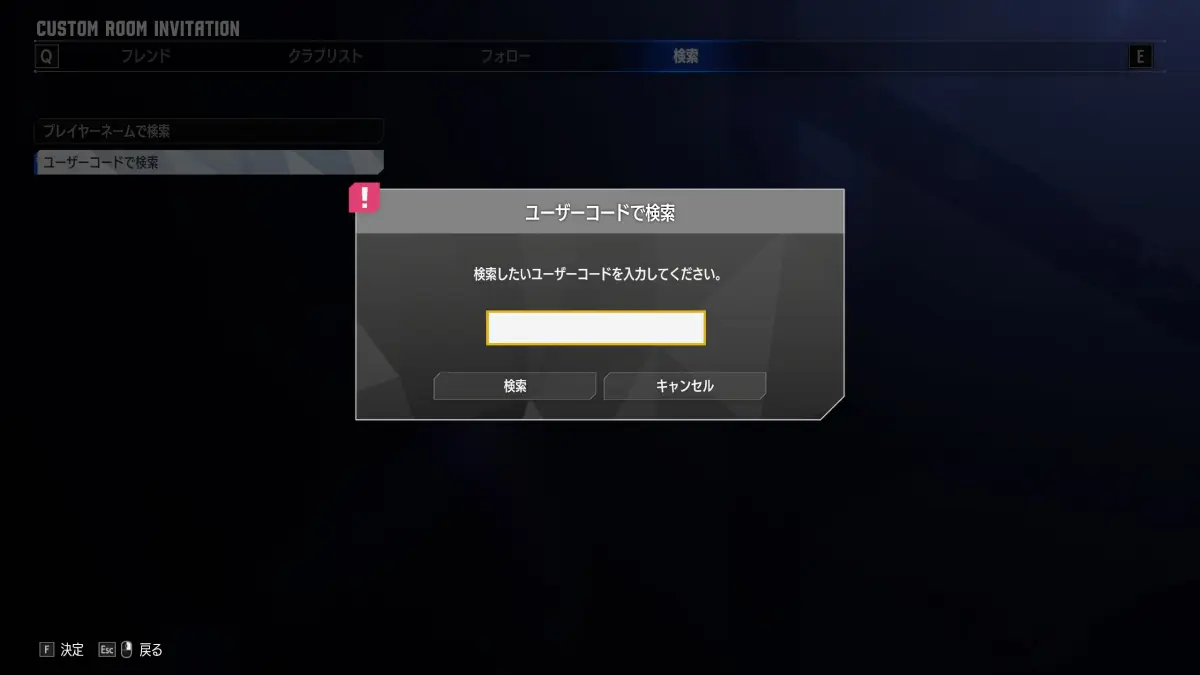
Step 10
In the user code input dialog, enter the 10-digit user code shown in the app to invite the other player.
Step 1
Select FIGHTING GROUND to enter the versus modes.
Step 2
Inside FIGHTING GROUND, select CUSTOM ROOM to open its menu.
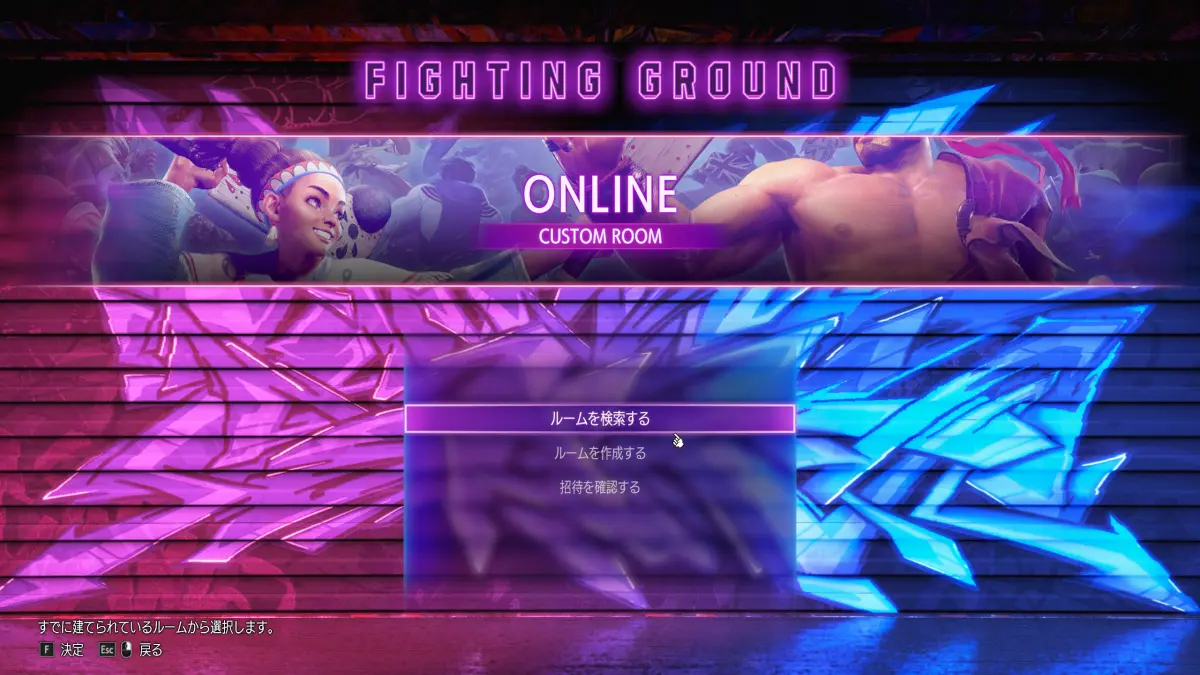
Step 3
In the CUSTOM ROOM menu, select "Search Rooms".
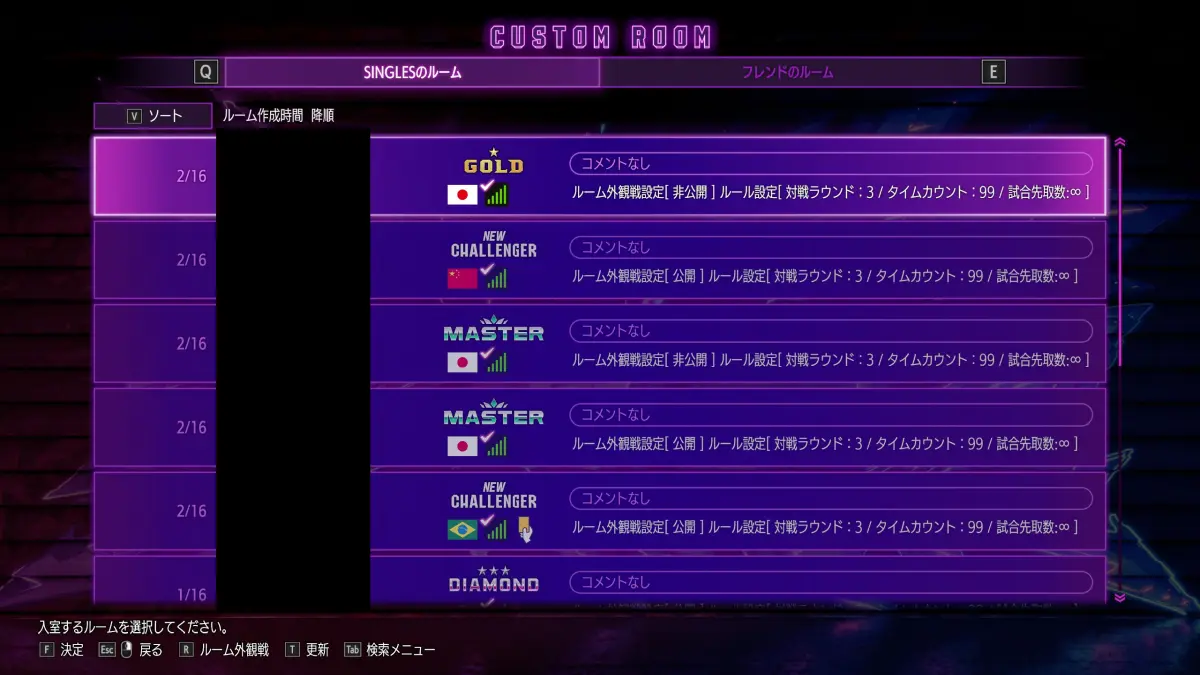
Step 4
On the Search Rooms screen, open "Search Menu". The corresponding button varies by device.
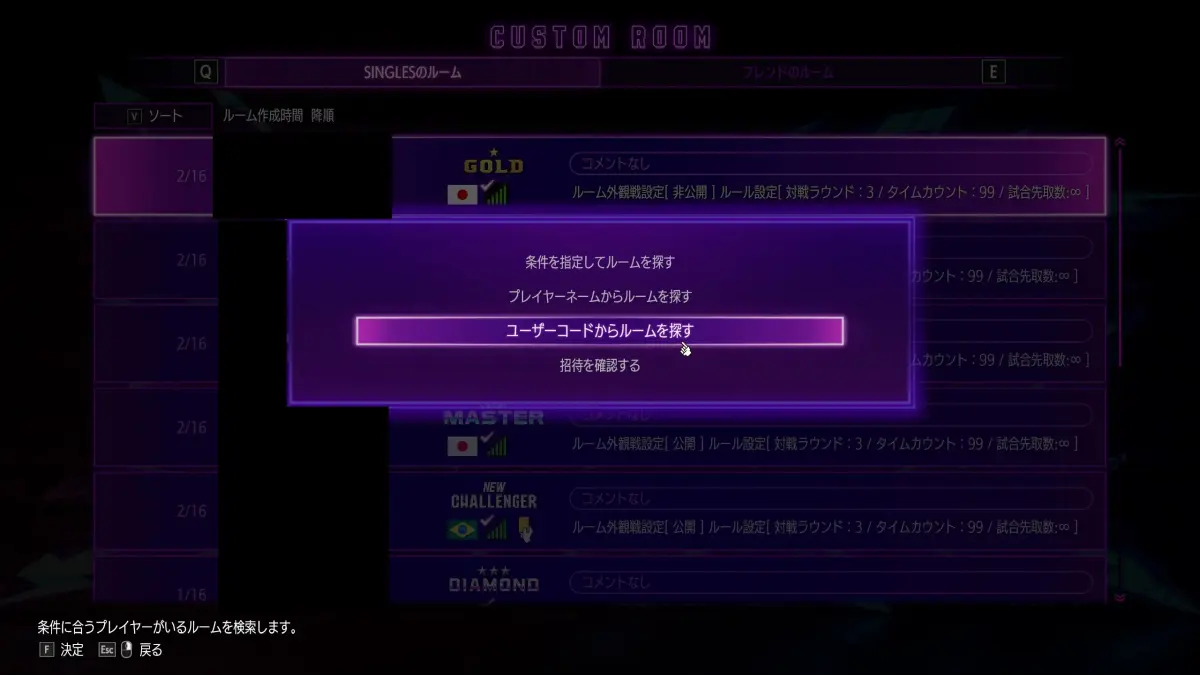
Step 5
Select "Find room by user code". You can also use "Check Invitations" when joining from an invitation.
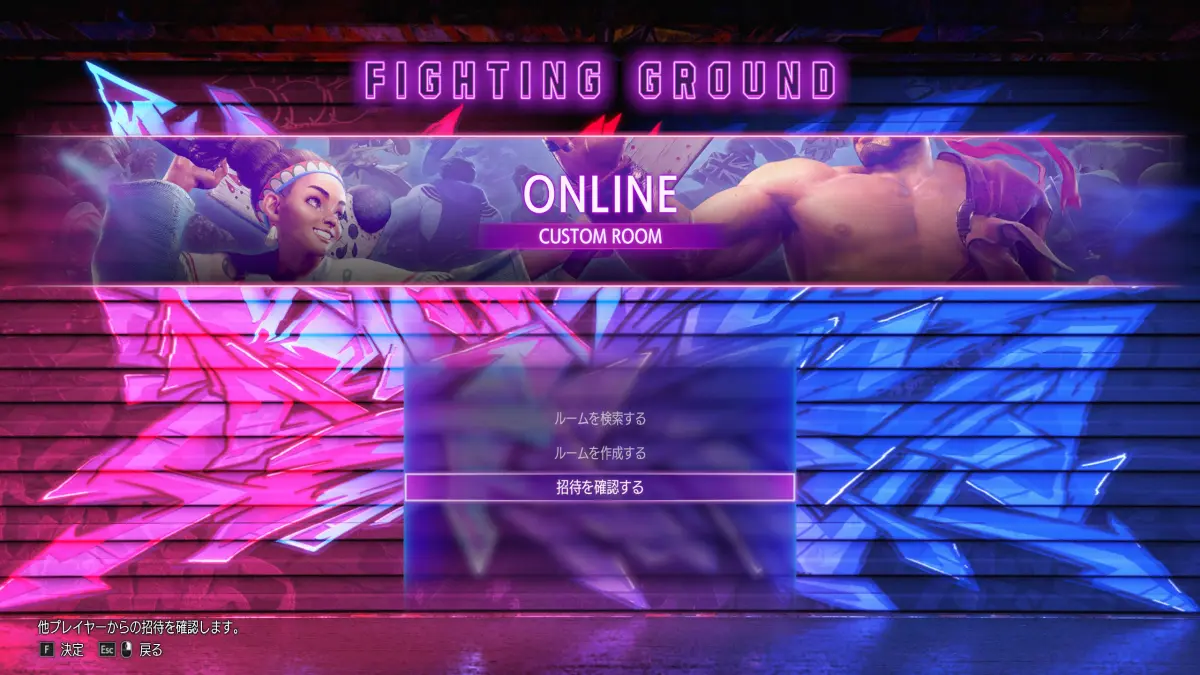
Step 6
You can also select "Check Invitations" from the CUSTOM ROOM menu.
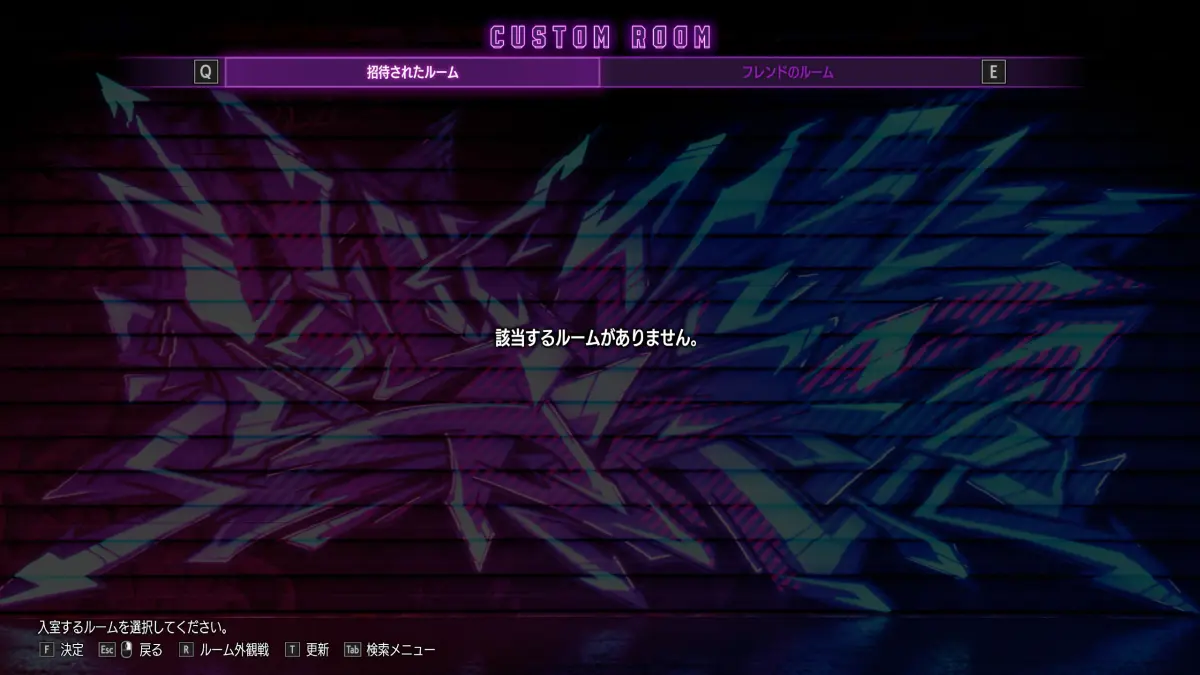
Step 7
Join from the displayed invitation or search result. If no room is shown, use Refresh at the bottom-left; the corresponding button varies by device.